Android Auto Split Screen, No Navigation Buttons
You plug in, the car screen splits, Maps takes half of it, and the Back / Home / Recents buttons you had yesterday are gone. It looks like something broke. Usually nothing did — that exact screen is one of three normal shapes, and knowing which one you are looking at takes about ten seconds.
The short version
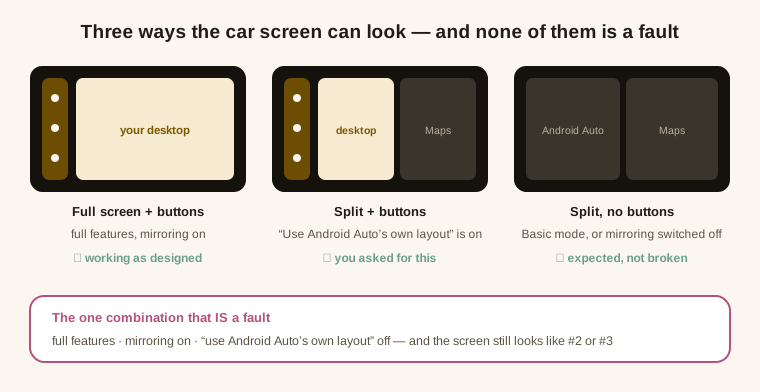
- Split, no buttons — Basic mode, or mirroring switched off. The layout isn't rewritten at all, so Android Auto keeps its own arrangement. Expected.
- Split, but the buttons are there — you (or someone) turned on “Use Android Auto's own layout”. Also expected.
- Full screen with buttons — full features, mirroring on, layout rewrite doing its job.
- Only one combination is a fault, and it is spelled out at the end.
Split with no buttons? Check the license first
Rewriting the head unit to full screen and putting Back / Home / Recents onto it are both full-features capabilities. In Basic mode neither happens, so Android Auto keeps the layout it would have had without any mirroring at all. Nothing failed; that is the free tier working as designed.
Two other signs travel with an expired license, and they are easy to spot:
- The car wallpaper changes to the reminder one. It is deliberate, not a glitch.
- Projection opens the launcher instead of the app you configured. Basic mode always lands on the car home screen.
If you see the reminder wallpaper and the launcher, you have your answer before you check anything else.
Split but the buttons are there? That switch is on
This is the combination that confuses people who know the previous one. It comes from “Use Android Auto's own layout” in Mirror settings — with it on, the layout rewrite stops, so a wide head unit shows Android Auto's split view again. The navigation bar stays either way, and that is precisely what separates this shape from the Basic-mode one: buttons present means the switch, buttons absent means the license.
“I turned that on and nothing changed”
Two different reasons, and they are worth checking in this order:
- You changed it in the car. This setting deliberately does not interrupt a drive — it takes effect the next time you connect. Toggling it while parked and plugged in will look like nothing happened.
- Your head unit is too narrow to split at all. Android Auto decides on density-independent width, not pixels. On a 720×1280 unit it doesn't split for anyone — not even for its own media apps. Turn the Android Auto UI size down (160 → 120 in Mirror settings) and the same screen measures 960×1706 instead; Android Auto re-decides on the spot and starts splitting.
The health check is all green but the layout is still wrong
Worth knowing what that green actually certifies: the in-app health check covers the engine axis — module deployed, Android Auto present, Google services there, launcher installed. It does not cover the license axis. A perfectly green health check with an expired license produces exactly the split-and-no-buttons screen, and both readings are correct at the same time.
When it actually is a fault
One combination, and only one: full features, mirroring switched on, “use Android Auto's own layout” off — and the car screen still isn't full screen. That is worth reporting, and it has happened: the layout rewrite has broken before by arriving too late in the connection, or by running against a stale copy of Android Auto after an update. Both were fixed in the versions that followed, which is also the first thing to rule out — update before you dig.
Two neighbours worth a look: the navigation bar you may be missing is also what a rotary knob uses to move around, and if you are still deciding how to get your apps onto the head unit at all, the methods are compared here.